
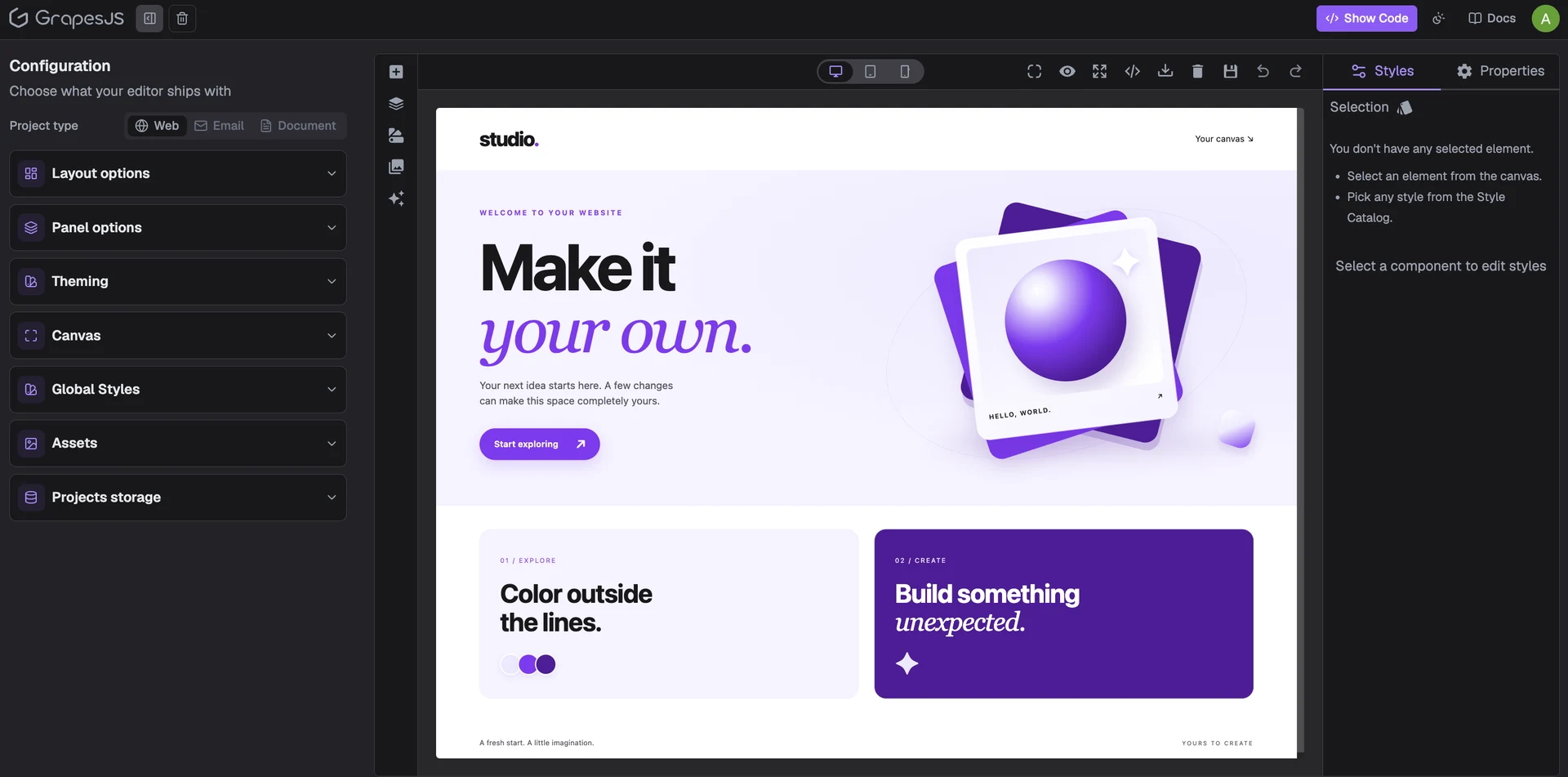
Before you add a visual editor to your app, there are a few decisions to make. Your users need somewhere to find blocks, somewhere to adjust styles, and enough room to work on their content. You want to try different arrangements and see which one feels right.
We've updated the Studio SDK Playground to make that setup visual. Choose the features your editor ships with, see them in the preview, and try the editor as you configure it. When you're happy with the setup, open Show Code to get the integration code.
You can explore the editing experience before adding it to your own application.
Start with a working editor
The playground opens with a choice of project types:
- Web for websites and landing pages.
- Email for editable MJML newsletters.
- Document for print-ready documents.
Choose one to open a working editor alongside its configuration. In the Web editor, the canvas already contains a sample page with headings, images, and sections you can edit.
That content gives you something to work with immediately. Select a heading and try the style controls. Explore the available blocks, open the assets panel, or switch device previews to see the page at different sizes. You can discover how the included features behave while deciding which ones belong in your editor.
Choose how your editor is arranged
The configuration sidebar lets you assemble the interface around the way your users work.
Start with Layout options. You can try two sidebars, keep a single sidebar on either side, or use a layout focused on the topbar and canvas. Changing the layout updates the preview, so you can compare how much space each arrangement gives the content.
Then decide which panels go where. Keep blocks and assets together, choose where styles and properties appear, and set which panel opens by default. Sidebars can display their panels as buttons or tabs. You can also choose the actions available in the topbar, including preview, export, save, and undo.
For example, a landing-page editor might use a left sidebar for blocks and assets, with styles and properties on the right. Try that arrangement, edit part of the sample page, then switch to a single sidebar. You can judge the difference by using both setups.
Panel options takes this further with settings for individual panels. For the Blocks panel, you can adjust its title, search, category visibility, and Symbols support. These choices help shape how users find what they need inside your editor.
Tune the theme and editing controls
The rest of the configuration helps you explore the look and behavior of your setup.
Use Theming to choose the editor theme or enable a custom theme. The Canvas section includes the rich text editor selection and full device size option. Global Styles lets you include the default style preset.
As you make these choices, keep returning to the preview. Try switching between Blocks and Styles while editing the sample page. Check whether your chosen layout leaves enough room for the canvas and keeps the controls you use within reach.
You can also configure asset and project storage for the integration you export. Project storage includes autosave settings. Preview projects are saved for the current browser tab; the storage destination you choose applies to the exported integration.
Take the setup into your app
Once you've assembled an editor you want to use, click Show Code.
The code view provides an installation command and the code for your setup, with React, TS/JS, and HTML options. You can copy the code or export the available files, then continue integrating Studio SDK into your application.
You can try a configuration, inspect the code it produces, and return to the preview to refine it. The code view also includes guidance on using the demo license on localhost and getting an SDK license for another domain.
Pair your visual setup with Agent Skills
We also shared how Agent Skills help AI coding agents integrate Studio SDK. Skills give those agents the SDK concepts, API details, and working patterns they need during development.
The playground helps you decide what you want the editor to look like and which features it should include. Assemble and test your editor in the playground, then get its code. A coding agent with the Studio SDK Skills can help you fit that setup into your app.
Your agent has a concrete configuration to start from, and you've already tried the editing experience you're asking it to integrate.
Open the Studio SDK Playground, choose a project type, and try a layout change. Use the preview to edit some content before you decide what your editor should ship with.