
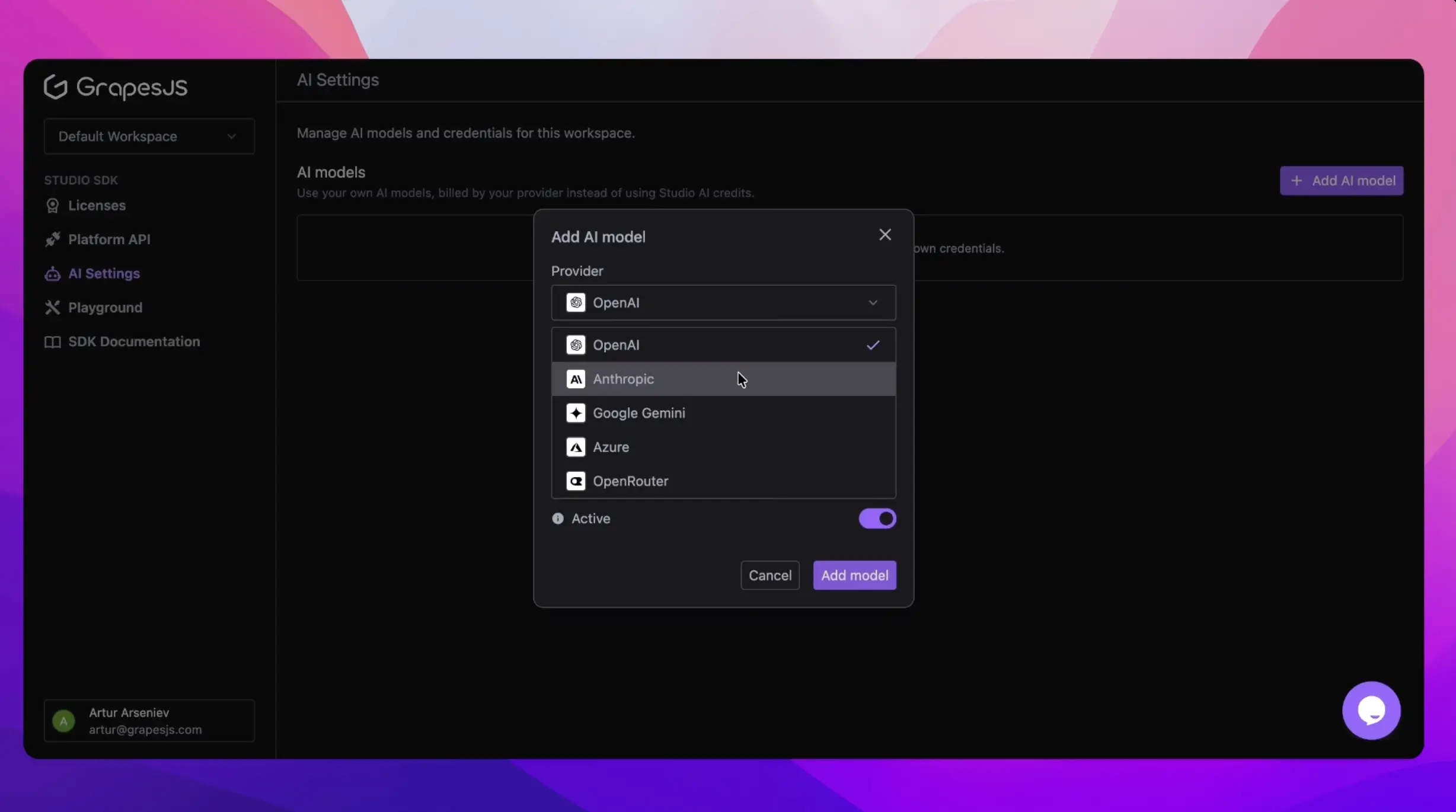
You can now bring your own AI models to the AI Chat plugin for Studio SDK. Add your provider API keys, choose the models you want to use, and customize their prompts from your application.
This is bring your own key, or BYOK: calls to your models are billed through your provider instead of using Grapes Studio AI credits. Studio still handles the AI requests and the editor's built-in tools on our hosted backend.
You can also change prompts before each request. That means the same editor can follow one customer's brand guidelines, switch to another customer's language, or use a different model for a particular project.
Add your models in AI Settings
Start in AI Settings:
- Select the workspace you use for your Studio SDK integration.
- Click Add AI model and choose a provider and model.
- Enter your provider API key and any other credentials the provider requires.
- Keep the model Active, save it, and copy its ID.
Use the same workspace as the Platform API key that generates your chat access tokens. Provider keys stay in AI Settings; your frontend only needs the saved model IDs.
For the example below, add a text model and an image model. You can use the same text model for chat and code generation, or add a separate one for each.
Connect your models to AI Chat
If you're adding AI Chat for the first time, follow the quick start to add the chat panel, then set up access token generation. Keep your Platform API key on your backend. The /get-token route in this example is the route you create during that setup.
Then use this configuration for the aiChat.init(...) entry in your editor's plugins array. Replace the placeholder IDs with the IDs you copied from AI Settings.
import aiChat from '@grapesjs/studio-sdk-plugins/dist/aiChat';

// ...

aiChat.init({
  // ...
  body: ({ body }) => ({
    ...body,
    settings: {
      agentChat: {
        modelId: 'YOUR_TEXT_MODEL_ID',
        prompt: {
          postamble: `Reply in Spanish. Keep answers brief.`
        }
      },
      agentDev: {
        modelId: 'YOUR_TEXT_MODEL_ID',
        prompt: {
          design: `Use generous spacing and #0f766e as the primary color.`,
          postamble: `Write page copy in Spanish. Use accessible HTML.`
        }
      },
    }
  })
});
agentChat handles the conversation, agentDev generates and edits code. Each can have its own model and prompt instructions.
Try asking the chat to create a hero section with a headline and a call to action. The configuration above tells it which models to use, which language to write in, and which color to use in the design.
Change prompts as your users work
The body callback runs before each chat request, so you can update them when someone changes a project or brand setting.
You can change the model IDs the same way, using another active model from your workspace.
For a product serving several brands, this lets you pass the current brand's colors and writing instructions into the chat without asking users to repeat them in every message.
How billing works
Model calls using your provider keys do not consume Grapes Studio AI credits. Your provider bills that usage to your account.
Model selection is separate for each agent. If you leave out an agent's modelId, it uses Studio's default model and AI credits.
You can also customize prompts while keeping Studio's default models. Just omit modelId and pass the prompt settings you need.
Open AI Settings to add your first model. For more examples, see custom models and prompts, or browse the full AI settings reference.